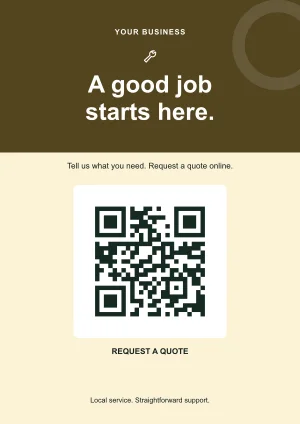
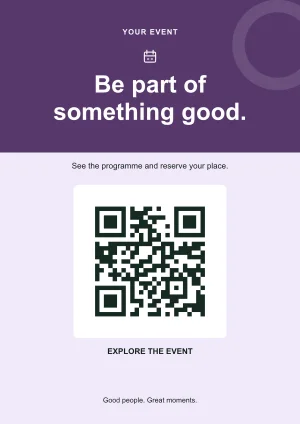
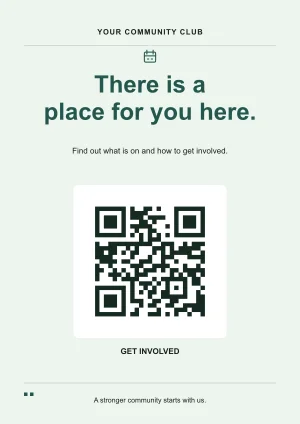
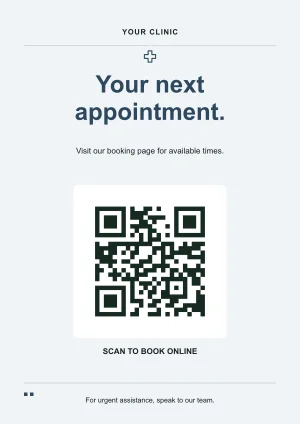
How to customise a QR sign
Choose the sign’s purpose
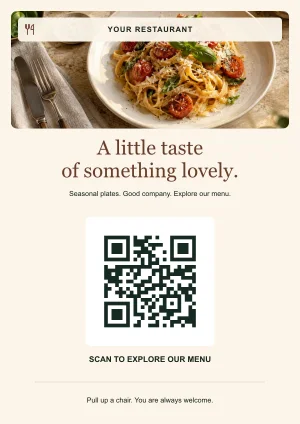
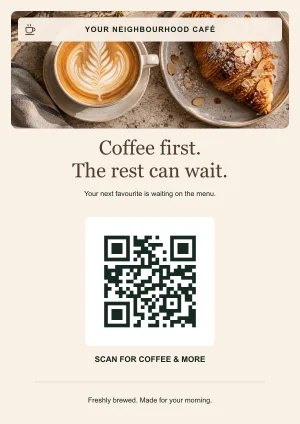
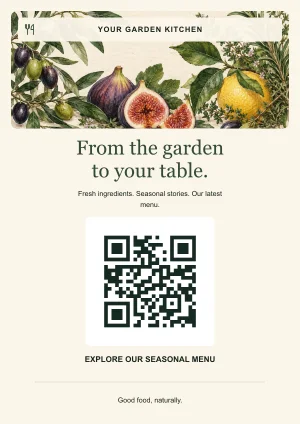
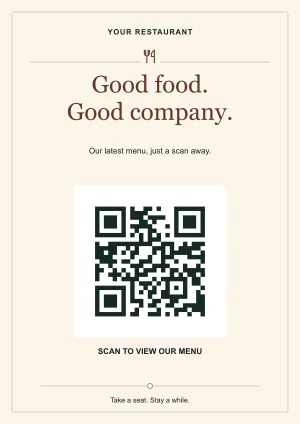
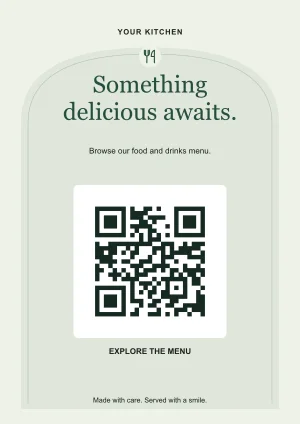
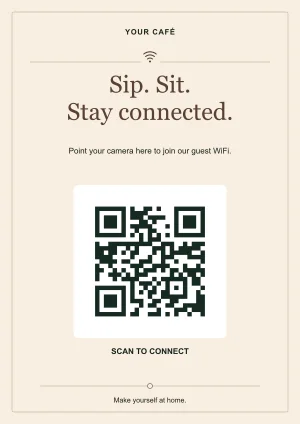
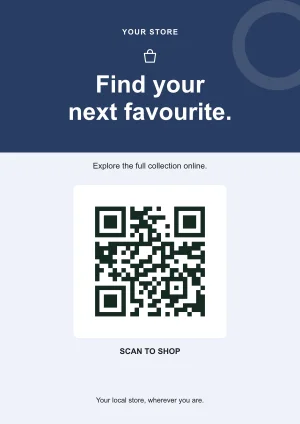
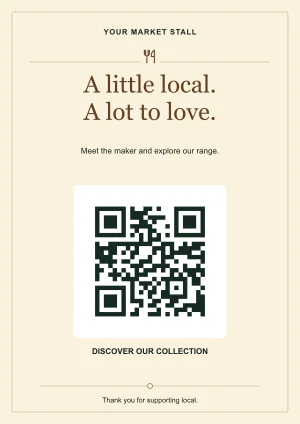
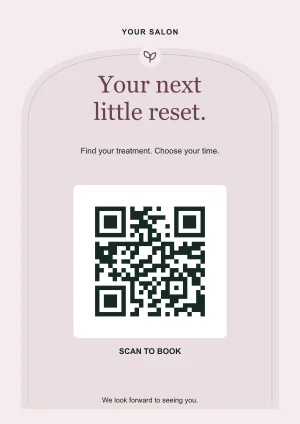
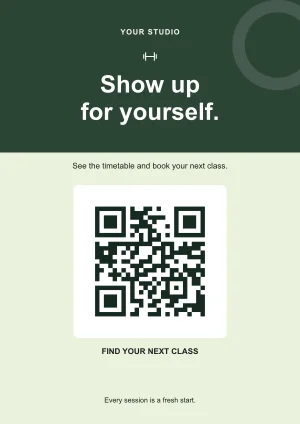
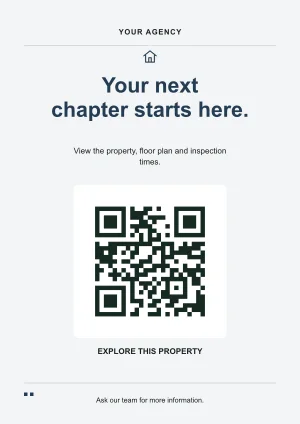
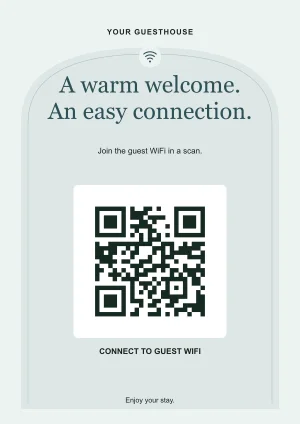
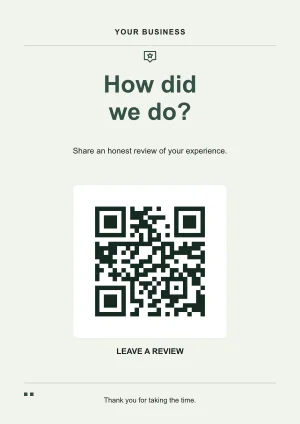
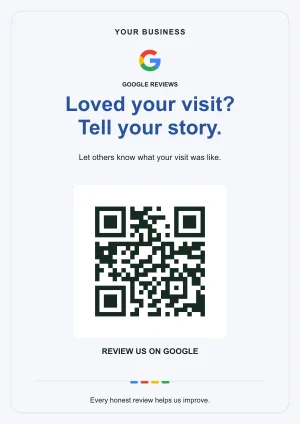
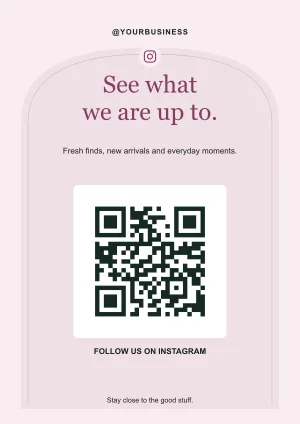
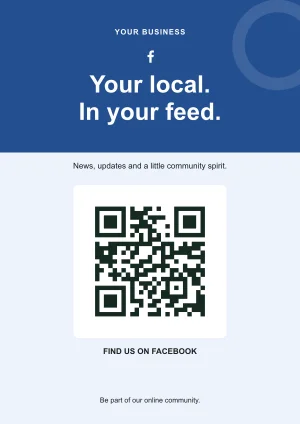
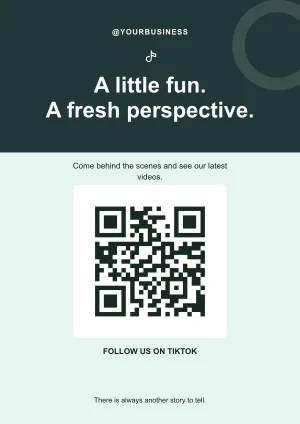
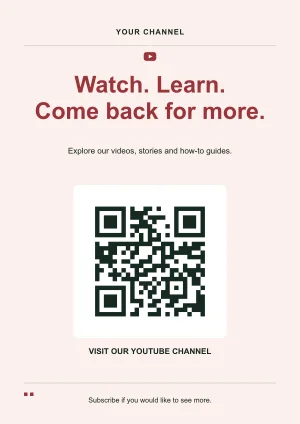
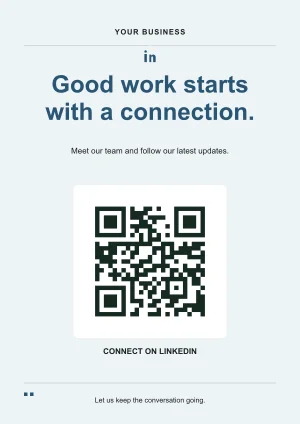
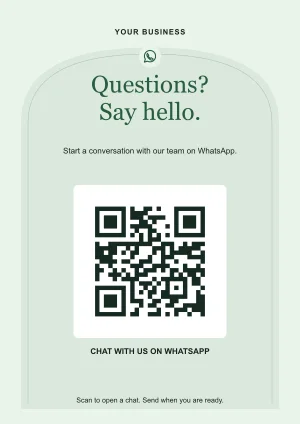
Start with a restaurant menu, guest WiFi, review, booking or social design. Each preview is a starting layout with sample details. Select a template to open the editor.
Replace the sample and personalise the artwork
Add your real destination or WiFi details, business name and instruction. Adjust colours and heading style, upload a logo or card photo, and use extra text boxes for short supporting information.
Choose a size, download and test
Select A4, A5 or the square format. Check the preview for clipped wording and preserve space around the QR. Download before leaving the page, then test the file and a physical sample.
Choose a layout for the place it will be used
A restaurant table card benefits from one clear menu instruction. A counter review sign should name the business and invite honest feedback. A WiFi card needs to explain that it shares guest access. A social sign should say which profile it opens. Avoid giving one small sign several competing actions. If visitors need several links, direct the code to a page that organises those choices.
Customise the photo, logo and text
You can add or replace a card photo on any design using JPG, PNG or WebP, up to 15 MB. The photo fit and position controls help you frame it without covering the QR. A separate logo appears in the header. Up to four extra text boxes can be positioned with controls or dragged in the preview. Keep prices, long conditions and detailed menus at the linked destination rather than squeezing them around the code.
Editable artwork is different from an editable destination
Changing a template updates the next file you download. It cannot change wording, colours or photos already printed. For a destination that may move, create a dynamic code first and choose Put it on a template from its workspace. That passes the managed link into the artwork. A code made directly from an ordinary URL in the template editor contains that fixed URL.
Understand the export before sending it to print
A4 is 210 × 297 mm, A5 is 148 × 210 mm, and the square format is 148 × 148 mm. These are flat signs, not folded table tents. PDF contains 300 dpi artwork at the selected page size; SVG preserves scalable shapes, with photos remaining raster images. Downloads do not include bleed or crop marks. Ask the printer how to fit the artwork to its production requirements without cropping the QR border.
Save your result before closing the editor
Edits and uploaded images stay in the current browser tab. There is no saved-design account library, and refreshing can clear your work. Download the finished artwork and keep your original logo, photo and destination information if you expect to recreate it later. Your dynamic link account, if used, stores the managed destination rather than a copy of every template edit.
Example: a menu sign that survives a provider change
A café expecting to move its menu to a new booking or ordering platform can create a dynamic code, then send it into a restaurant template. The café edits its name, menu invitation and food photo and prints the sign. Later it can change the link in its dynamic workspace while keeping the same sign. A new physical brand name or photo would still require a new download and print.
Illustrative workflow, not a customer case study.Check before you share
- Sample names and sample links have been replaced.
- All text fits and remains readable at the selected print size.
- The real QR opens the correct destination or guest network.
- The final export is saved, with a tested proof in its intended holder.